AI on demand: Configuring OpenCode Desktop
Overview
OpenCode is an open-source AI coding agent, available as a desktop application, in the browser or via the terminal. It supports tool calls, MCP servers, skills, plugins, etc. for software development workflows. OpenCode can be configured to exclusively use AI models hosted by stepping stone AG via its OpenAI-compatible API.
Note: This guide walks through configuring the desktop variant of OpenCode. If you are looking for guidance on setting up the terminal version of OpenCode, see AI on Demand: Configure OpenCode Terminal
The following steps describe how to create a basic OpenCode setup using models provided by stepping stone AG, and some good first steps to control and extend the agents capabilities.
Prerequisites
- A valid AI on Demand API key.
- Network access to
https://llm.stoney-cloud.com/v1 - The ID of the AI models you wish to use with OpenCode (e.g.
- Optional: Node.js 20 or newer if you intend to install opencode via npm.
Installation
Download and install the binary / package appropriate for your system.
Once complete, open the OpenCode desktop app to verify that the installation was successful
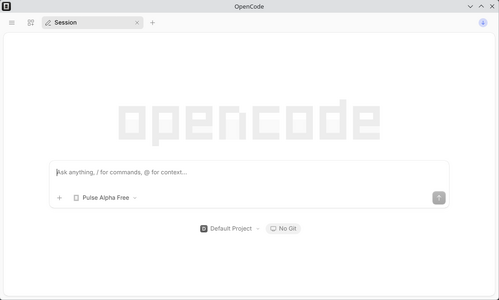
OpenCode Desktop

Configure provider and models
OpenCode desktop currently does not support adding custom model providers directly from its user interface. You will need to configure stepping stone AG as your provider by modifying your OpenCode configuration file to include the following:
{
  "$schema": "https://opencode.ai/config.json",
  "providers": {
    "stepping-stone": {
      "name": "stepping stone AG",
      "package": "@opencode/ai/providers/openai-compatible",
      "env": ["STONEY_KEY"],
      "settings": {
        "baseURL": "https://llm.stoney-cloud.com/v1"
      },
      "models": {}
    }
  }
}
On Linux machines, the default location of your personal configuration file is ~/.config/opencode/opencode.jsonc or equivalent. See https://opencode.ai/v2/docs/config/#locations for more information on where to place the configuration file on your system.
Note: When configuring stepping stone AG as your provider as above, OpenCode expects to find your API key in an environment variable called STONEY_KEY. Alternatively you may add your key directly to the configuration file by removing the "env": ["STONEY_KEY"], line, and adding your key as follows:
...
      "settings": {
        "baseURL": "https://llm.stoney-cloud.com/v1",
        "apiKey": "YOUR API KEY GOES HERE",
      },
...
Next, you should configure at least one model you wish to use with OpenCode. The following is a configuration for the GLM-5.3-Flash model provided by stepping stone AG:
...
      "models": {
        "zai-org/GLM-5.3-Flash": {
          "name": "GLM 5.3 Flash",
          "limit": {
            "context": 262144,
          },
          "cost": {
            "input": 0.3,
            "output": 1.5,
            "cache": {
              "read": 0.045,
            },
          },
        },
      }
Replace zai-org/GLM-5.3-Flash with the ID of the particular model you wish to use, and refer to https://www.stepping-stone.ch/en/products/artificial-intelligence for pricing and context window limits. Additional model specific configuration can be added as needed. See https://opencode.ai/v2/docs/models/ for further information on configuring models.
To check if your configuration is correct, restart OpenCode after changing the configuration file. If the configuration is correct, stepping stone AG should appear as a configured provider, and your selected model in the available models list.
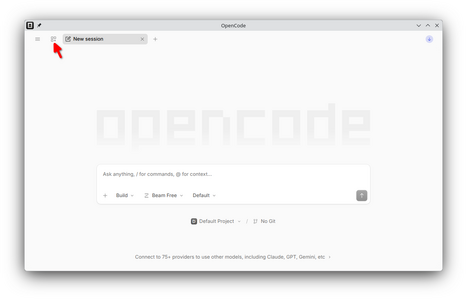
1. Open home page
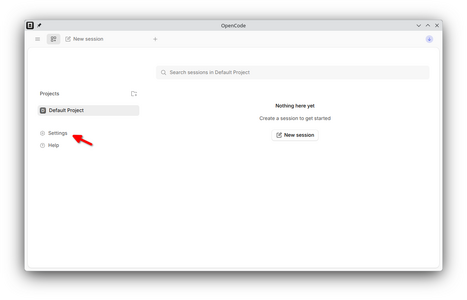
2. Open settings menu
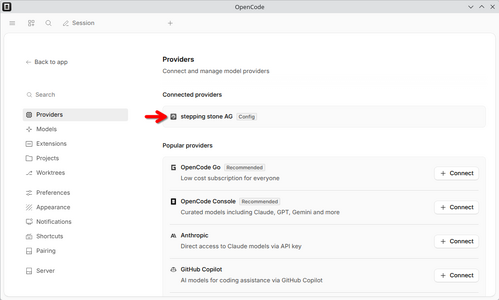
3. Check that stepping stone AG appears as a provider
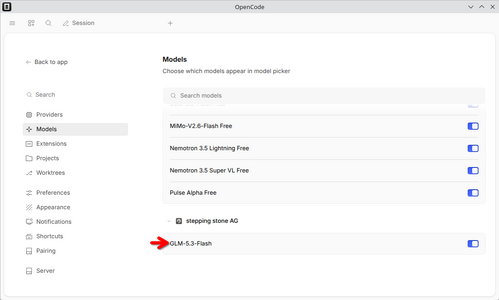
4. Check that your selected model appears at the bottom of the list


Finally, start a new session, select the model you have just configured and enter a first prompt to test that the model is working correctly.
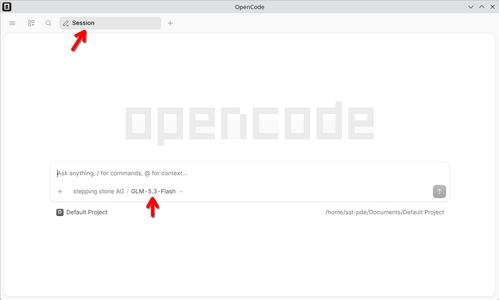
1. Start a new session and select a stepping stone AG provided model
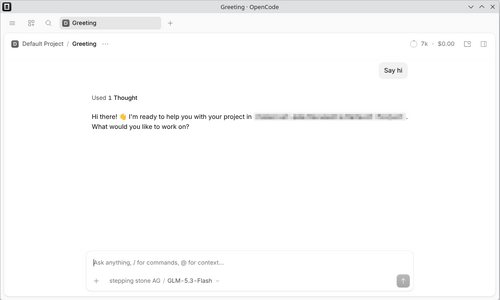
2. Enter a first prompt to check that the configuration works


Configure appearance and notifications
You may customise the appearance and layout of the UI, notification settings, shortcuts and more via the settings menu.
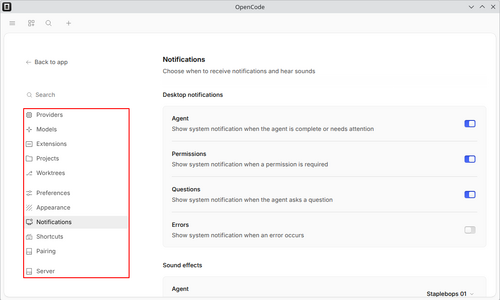
Available settings submenus

Permissions
OpenCode provides a built in sandbox to limit what actions an agent is allowed to perform. You can configure permissions via the configuration file (there is currently no option to configure permissions via the user interface). Permissions are defined as a list of rules. For each action (e.g. read/write a file, execute a shell command, etc.), you may define a set of rules, each with a pattern determining when the rule applies, and an effect to determine if the action is allowed, denied or requires explicit approval by the user. The following shows some examples of permission rules:
...
  "permissions": [
    { "action": "shell", "resource": "*", "effect": "ask" },
    { "action": "shell", "resource": "git status *", "effect": "allow" },
    { "action": "shell", "resource": "git push *", "effect": "deny" },
    { "action": "skill", "resource": "*", "effect": "allow" },
    { "action": "read", "resource": "*", "effect": "allow" },
    { "action": "edit", "resource": "*.html", "effect": "allow" },
  ]
...
Further steps
You now have a basic OpenCode agent setup available to you. You may further customise and extend OpenCode in a variety of ways, such as by adding skills, configuring MCP servers or OpenCode plugins.
Check https://opencode.ai/v2/docs/ or the settings menu of OpenCode to see how you can extend your agent to your needs.